- Black box testing
- not based on any knowledge of internal design or code. Tests are based on requirements and functionality.
- White box testing
- based on knowledge of the internal logic of an application’s code. Tests are based on coverage of code statements, branches, paths, conditions.
- Unit testing
- the most ‘micro’ scale of testing; to test particular functions or code modules. Typically done by the programmer and not by testers, as it requires detailed knowledge of the internal program design and code. Not always easily done unless the application has a well-designed architecture with tight code; may require developing test driver modules or test harnesses.
- Incremental integration testing
- continuous testing of an application as new functionality is added; requires that various aspects of an application’s functionality be independent enough to work separately before all parts of the program are completed, or that test drivers be developed as needed; done by programmers or by testers.
- Integration testing
- testing of combined parts of an application to determine if they function together correctly. The ‘parts’ can be code modules, individual applications, client and server applications on a network, etc. This type of testing is especially relevant to client/server and distributed systems.
- Functional testing
- black-box type testing geared to functional requirements of an application; this type of testing should be done by testers. This doesn’t mean that the programmers shouldn’t check that their code works before releasing it (which of course applies to any stage of testing.)
- System testing
- black box type testing that is based on overall requirement specifications; covers all combined parts of a system.
- End-to-end testing
- similar to system testing; the ‘macro’ end of the test scale; involves testing of a complete application environment in a situation that mimics real-world use, such as interacting with a database, using network communications, or interacting with other hardware, applications, or systems if appropriate.
- Sanity testing
- typically an initial testing effort to determine if a new software version is performing well enough to accept it for a major testing effort. For example, if the new software is crashing systems every 5 minutes, bogging down systems to a crawl, or destroying databases, the software may not be in a ’sane’ enough condition to warrant further testing in its current state.
- Regression testing
- re-testing after fixes or modifications of the software or its environment. It can be difficult to determine how much re-testing is needed, especially near the end of the development cycle. Automated testing tools can be especially useful for this type of testing.
- Acceptance testing
- final testing based on specifications of the end-user or customer, or based on use by end-users/customers over some limited period of time.
- Load testing
- testing an application under heavy loads, such as testing of a web site under a range of loads to determine at what point the systems response time degrades or fails.
- Stress testing
- term often used interchangeably with ‘load’ and ‘performance’ testing. Also used to describe such tests as system functional testing while under unusually heavy loads, heavy repetition of certain actions or inputs, input of large numerical values, large complex queries to a database system, etc.
- Performance testing
- term often used interchangeably with ’stress’ and ‘load’ testing. Ideally ‘performance’ testing (and any other ‘type’ of testing) is defined in requirements documentation or QA or Test Plans.
- Usability testing
- testing for ‘user-friendliness’. Clearly this is subjective, and will depend on the targeted end-user or customer. User interviews, surveys, video recording of user sessions, and other techniques can be used. Programmers and testers are usually not appropriate as usability testers.
- Install/uninstall testing
- testing of full, partial, or upgrade install/uninstall processes.
- Recovery testing
- testing how well a system recovers from crashes, hardware failures, or other catastrophic problems.
- Security testing
- testing how well the system protects against unauthorized internal or external access, willful damage, etc; may require sophisticated testing techniques.
- Compatibility testing
- testing how well software performs in a particular hardware/software/operating system/network/etc. environment.
- Exploratory testing
- often taken to mean a creative, informal software test that is not based on formal test plans or test cases; testers may be learning the software as they test it.
- Ad-hoc testing
- similar to exploratory testing, but often taken to mean that the testers have significant understanding of the software before testing it.
- User acceptance testing
- determining if software is satisfactory to an end-user or customer.
- Comparison testing
- comparing software weaknesses and strengths to competing products.
- Alpha testing
- testing of an application when development is nearing completion; minor design changes may still be made as a result of such testing. Typically done by end-users or others, not by programmers or testers.
- Beta testing
- testing when development and testing are essentially completed and final bugs and problems need to be found before final release. Typically done by end-users or others, not by programmers or testers.
- Mutation testing
- a method for determining if a set of test data or test cases is useful, by deliberately introducing various code changes (’bugs’) and retesting with the original test data/cases to determine if the ‘bugs’ are detected. Proper implementation requires large computational resources.
Thursday, November 23, 2006
SQA and testing frequently asked definitions


Load testing interview questions
- What criteria would you use to select Web transactions for load testing?
- Why are virtual users created?
- Why is it recommended to add verification checks to your all your scenarios?
- What’s the scenario, where you would want to parameterize a text verification check?
- Why do you need to parameterize fields in your virtual user script?
- What are the cases why parameterization is necessary when load testing the Web server and the database server?
- How can data caching have a negative effect on load testing results?
- What is usually a good indicator that your virtual user script has dynamic data, which is dependent on the parameterized fields?
- What are the benefits of creating multiple actions within any virtual user script?
- What is a Load Test Results Summary Report?
QTP interview questions
- What are the Features & Benefits of Quick Test Pro (QTP 8.0)? - Operates stand-alone, or integrated into Mercury Business Process Testing and Mercury Quality Center. Introduces next-generation zero-configuration Keyword Driven testing technology in Quick Test Professional 8.0 allowing for fast test creation, easier maintenance, and more powerful data-driving capability. Identifies objects with Unique Smart Object Recognition, even if they change from build to build, enabling reliable unattended script execution. Collapses test documentation and test creation to a single step with Auto-documentation technology. Enables thorough validation of applications through a full complement of checkpoints.
- How to handle the exceptions using recovery scenario manager in QTP? - There are 4 trigger events during which a recovery scenario should be activated. A pop up window appears in an opened application during the test run: A property of an object changes its state or value, A step in the test does not run successfully, An open application fails during the test run, These triggers are considered as exceptions.You can instruct QTP to recover unexpected events or errors that occurred in your testing environment during test run. Recovery scenario manager provides a wizard that guides you through the defining recovery scenario. Recovery scenario has three steps: 1. Triggered Events 2. Recovery steps 3. Post Recovery Test-Run
- What is the use of Text output value in QTP? - Output values enable to view the values that the application talks during run time. When parameterized, the values change for each iteration. Thus by creating output values, we can capture the values that the application takes for each run and output them to the data table.
- How to use the Object spy in QTP 8.0 version? - There are two ways to Spy the objects in QTP: 1) Thru file toolbar, In the File Toolbar click on the last toolbar button (an icon showing a person with hat). 2) True Object repository Dialog, In Object repository dialog click on the button object spy. In the Object spy Dialog click on the button showing hand symbol. The pointer now changes in to a hand symbol and we have to point out the object to spy the state of the object if at all the object is not visible. or window is minimized then, hold the Ctrl button and activate the required window to and release the Ctrl button.
- How Does Run time data (Parameterization) is handled in QTP? - You can then enter test data into the Data Table, an integrated spreadsheet with the full functionality of Excel, to manipulate data sets and create multiple test iterations, without programming, to expand test case coverage. Data can be typed in or imported from databases, spreadsheets, or text files.
- What is keyword view and Expert view in QTP? - Quick Test’s Keyword Driven approach, test automation experts have full access to the underlying test and object properties, via an integrated scripting and debugging environment that is round-trip synchronized with the Keyword View. Advanced testers can view and edit their tests in the Expert View, which reveals the underlying industry-standard VBScript that Quick Test Professional automatically generates. Any changes made in the Expert View are automatically synchronized with the Keyword View.
- Explain about the Test Fusion Report of QTP? - Once a tester has run a test, a Test Fusion report displays all aspects of the test run: a high-level results overview, an expandable Tree View of the test specifying exactly where application failures occurred, the test data used, application screen shots for every step that highlight any discrepancies, and detailed explanations of each checkpoint pass and failure. By combining Test Fusion reports with Quick Test Professional, you can share reports across an entire QA and development team.
- Which environments does QTP support? - Quick Test Professional supports functional testing of all enterprise environments, including Windows, Web,..NET, Java/J2EE, SAP, Siebel, Oracle, PeopleSoft, Visual Basic, ActiveX, mainframe terminal emulators, and Web services.
- What is QTP? - Quick Test is a graphical interface record-playback automation tool. It is able to work with any web, java or windows client application. Quick Test enables you to test standard web objects and ActiveX controls. In addition to these environments, Quick Test Professional also enables you to test Java applets and applications and multimedia objects on Applications as well as standard Windows applications, Visual Basic 6 applications and.NET framework applications
- Explain QTP Testing process? - Quick Test testing process consists of 6 main phases:
- Create your test plan - Prior to automating there should be a detailed description of the test including the exact steps to follow, data to be input, and all items to be verified by the test. The verification information should include both data validations and existence or state verifications of objects in the application.
- Recording a session on your application - As you navigate through your application, Quick Test graphically displays each step you perform in the form of a collapsible icon-based test tree. A step is any user action that causes or makes a change in your site, such as clicking a link or image, or entering data in a form.
- Enhancing your test - Inserting checkpoints into your test lets you search for a specific value of a page, object or text string, which helps you identify whether or not your application is functioning correctly. NOTE: Checkpoints can be added to a test as you record it or after the fact via the Active Screen. It is much easier and faster to add the checkpoints during the recording process. Broadening the scope of your test by replacing fixed values with parameters lets you check how your application performs the same operations with multiple sets of data. Adding logic and conditional statements to your test enables you to add sophisticated checks to your test.
- Debugging your test - If changes were made to the script, you need to debug it to check that it operates smoothly and without interruption.
- Running your test on a new version of your application - You run a test to check the behavior of your application. While running, Quick Test connects to your application and performs each step in your test.
- Analyzing the test results - You examine the test results to pinpoint defects in your application.
- Reporting defects - As you encounter failures in the application when analyzing test results, you will create defect reports in Defect Reporting Tool.
- Explain the QTP Tool interface. - It contains the following key elements: Title bar, displaying the name of the currently open test, Menu bar, displaying menus of Quick Test commands, File toolbar, containing buttons to assist you in managing tests, Test toolbar, containing buttons used while creating and maintaining tests, Debug toolbar, containing buttons used while debugging tests. Note: The Debug toolbar is not displayed when you open Quick Test for the first time. You can display the Debug toolbar by choosing View — Toolbars — Debug. Action toolbar, containing buttons and a list of actions, enabling you to view the details of an individual action or the entire test flow. Note: The Action toolbar is not displayed when you open Quick Test for the first time. You can display the Action toolbar by choosing View — Toolbars — Action. If you insert a reusable or external action in a test, the Action toolbar is displayed automatically. Test pane, containing two tabs to view your test-the Tree View and the Expert View ,Test Details pane, containing the Active Screen. Data Table, containing two tabs, Global and Action, to assist you in parameterizing your test. Debug Viewer pane, containing three tabs to assist you in debugging your test-Watch Expressions, Variables, and Command. (The Debug Viewer pane can be opened only when a test run pauses at a breakpoint.) Status bar, displaying the status of the test
- How does QTP recognize Objects in AUT? - Quick Test stores the definitions for application objects in a file called the Object Repository. As you record your test, Quick Test will add an entry for each item you interact with. Each Object Repository entry will be identified by a logical name (determined automatically by Quick Test), and will contain a set of properties (type, name, etc) that uniquely identify each object. Each line in the Quick Test script will contain a reference to the object that you interacted with, a call to the appropriate method (set, click, check) and any parameters for that method (such as the value for a call to the set method). The references to objects in the script will all be identified by the logical name, rather than any physical, descriptive properties.
- What are the types of Object Repositories in QTP? - Quick Test has two types of object repositories for storing object information: shared object repositories and action object repositories. You can choose which type of object repository you want to use as the default type for new tests, and you can change the default as necessary for each new test. The object repository per-action mode is the default setting. In this mode, Quick Test automatically creates an object repository file for each action in your test so that you can create and run tests without creating, choosing, or modifying object repository files. However, if you do modify values in an action object repository, your changes do not have any effect on other actions. Therefore, if the same test object exists in more than one action and you modify an object’s property values in one action, you may need to make the same change in every action (and any test) containing the object.
- Explain the check points in QTP? - A checkpoint verifies that expected information is displayed in an Application while the test is running. You can add eight types of checkpoints to your test for standard web objects using QTP. A page checkpoint checks the characteristics of an Application. A text checkpoint checks that a text string is displayed in the appropriate place on an Application. An object checkpoint (Standard) checks the values of an object on an Application. An image checkpoint checks the values of an image on an Application. A table checkpoint checks information within a table on a Application. An Accessibilityy checkpoint checks the web page for Section 508 compliance. An XML checkpoint checks the contents of individual XML data files or XML documents that are part of your Web application. A database checkpoint checks the contents of databases accessed by your web site
- In how many ways we can add check points to an application using QTP? - We can add checkpoints while recording the application or we can add after recording is completed using Active screen (Note : To perform the second one The Active screen must be enabled while recording).
- How does QTP identify objects in the application? - QTP identifies the object in the application by Logical Name and Class.
- What is Parameterizing Tests? - When you test your application, you may want to check how it performs the same operations with multiple sets of data. For example, suppose you want to check how your application responds to ten separate sets of data. You could record ten separate tests, each with its own set of data. Alternatively, you can create a parameterized test that runs ten times: each time the test runs, it uses a different set of data.
- What is test object model in QTP? - The test object model is a large set of object types or classes that Quick Test uses to represent the objects in your application. Each test object class has a list of properties that can uniquely identify objects of that class and a set of relevant methods that Quick Test can record for it. A test object is an object that Quick Test creates in the test or component to represent the actual object in your application. Quick Test stores information about the object that will help it identify and check the object during the run session.
- What is Object Spy in QTP? - Using the Object Spy, you can view the properties of any object in an open application. You use the Object Spy pointer to point to an object. The Object Spy displays the selected object’s hierarchy tree and its properties and values in the Properties tab of the Object Spy dialog box.
- What is the Diff between Image check-point and Bit map Check point? - Image checkpoints enable you to check the properties of a Web image. You can check an area of a Web page or application as a bitmap. While creating a test or component, you specify the area you want to check by selecting an object. You can check an entire object or any area within an object. Quick Test captures the specified object as a bitmap, and inserts a checkpoint in the test or component. You can also choose to save only the selected area of the object with your test or component in order to save disk Space. For example, suppose you have a Web site that can display a map of a city the user specifies. The map has control keys for zooming. You can record the new map that is displayed after one click on the control key that zooms in the map. Using the bitmap checkpoint, you can check that the map zooms in correctly. You can create bitmap checkpoints for all supported testing environments (as long as the appropriate add-ins are loaded). Note: The results of bitmap checkpoints may be affected by factors such as operating system, screen resolution, and color settings.
- How many ways we can parameterize data in QTP? - There are four types of parameters: Test, action or component parameters enable you to use values passed from your test or component, or values from other actions in your test. Data Table parameters enable you to create a data-driven test (or action) that runs several times using the data you supply. In each repetition, or iteration, Quick Test uses a different value from the Data Table. Environment variable parameters enable you to use variable values from other sources during the run session. These may be values you supply, or values that Quick Test generates for you based on conditions and options you choose. Random number parameters enable you to insert random numbers as values in your test or component. For example, to check how your application handles small and large ticket orders, you can have Quick Test generate a random number and insert it in a number of tickets edit field.
- How do u do batch testing in WR & is it possible to do in QTP, if so explain? - Batch Testing in WR is nothing but running the whole test set by selecting Run Test set from the Execution Grid. The same is possible with QTP also. If our test cases are automated then by selecting Run Test set all the test scripts can be executed. In this process the Scripts get executed one by one by keeping all the remaining scripts in Waiting mode.
- If I give some thousand tests to execute in 2 days what do u do? - Adhoc testing is done. It Covers the least basic functionalities to verify that the system is working fine.
- What does it mean when a check point is in red color? what do u do? - A red color indicates failure. Here we analyze the cause for failure whether it is a Script Issue or Environment Issue or a Application issue.
- What is Object Spy in QTP? - Using the Object Spy, you can view the properties of any object in an open application. You use the Object Spy pointer to point to an object. The Object Spy displays the selected object’s hierarchy tree and its properties and values in the Properties tab of the Object Spy dialog box.
- What is the file extension of the code file & object repository file in QTP? - Code file extension is.vbs and object repository is.tsr
- Explain the concept of object repository & how QTP recognizes objects? - Object Repository: displays a tree of all objects in the current component or in the current action or entire test (depending on the object repository mode you selected). We can view or modify the test object description of any test object in the repository or to add new objects to the repository. Quicktest learns the default property values and determines in which test object class it fits. If it is not enough it adds assistive properties, one by one to the description until it has compiled the unique description. If no assistive properties are available, then it adds a special Ordinal identifier such as objects location on the page or in the source code.
- What are the properties you would use for identifying a browser & page when using descriptive programming? - Name would be another property apart from title that we can use.
- Give me an example where you have used a COM interface in your QTP project? - com interface appears in the scenario of front end and back end. for eg:if you r using oracle as back end and front end as VB or any language then for better compatibility we will go for an interface. of which COM will be one among those interfaces. Create object creates handle to the instance of the specified object so that we program can use the methods on the specified object. It is used for implementing Automation(as defined by Microsoft).
- Explain in brief about the QTP Automation Object Model. - Essentially all configuration and run functionality provided via the Quick Test interface is in some way represented in the Quick Test automation object model via objects, methods, and properties. Although a one-on-one comparison cannot always be made, most dialog boxes in Quick Test have a corresponding automation object, most options in dialog boxes can be set and/or retrieved using the corresponding object property, and most menu commands and other operations have corresponding automation methods. You can use the objects, methods, and properties exposed by the Quick Test automation object model, along with standard programming elements such as loops and conditional statements to design your program.
WinRunner interview questions
- How you used WinRunner in your project? - Yes, I have been using WinRunner for creating automated scripts for GUI, functional and regression testing of the AUT.
- Explain WinRunner testing process? - WinRunner testing process involves six main stages
- Create GUI Map File so that WinRunner can recognize the GUI objects in the application being tested
- Create test scripts by recording, programming, or a combination of both. While recording tests, insert checkpoints where you want to check the response of the application being tested.
- Debug Test: run tests in Debug mode to make sure they run smoothly
- Run Tests: run tests in Verify mode to test your application.
- View Results: determines the success or failure of the tests.
- Report Defects: If a test run fails due to a defect in the application being tested, you can report information about the defect directly from the Test Results window.
- What is contained in the GUI map? - WinRunner stores information it learns about a window or object in a GUI Map. When WinRunner runs a test, it uses the GUI map to locate objects. It reads an object’s description in the GUI map and then looks for an object with the same properties in the application being tested. Each of these objects in the GUI Map file will be having a logical name and a physical description. There are 2 types of GUI Map files. Global GUI Map file: a single GUI Map file for the entire application. GUI Map File per Test: WinRunner automatically creates a GUI Map file for each test created.
- How does WinRunner recognize objects on the application? - WinRunner uses the GUI Map file to recognize objects on the application. When WinRunner runs a test, it uses the GUI map to locate objects. It reads an object’s description in the GUI map and then looks for an object with the same properties in the application being tested.
- Have you created test scripts and what is contained in the test scripts? - Yes I have created test scripts. It contains the statement in Mercury Interactive’s Test Script Language (TSL). These statements appear as a test script in a test window. You can then enhance your recorded test script, either by typing in additional TSL functions and programming elements or by using WinRunner’s visual programming tool, the Function Generator.
- How does WinRunner evaluate test results? - Following each test run, WinRunner displays the results in a report. The report details all the major events that occurred during the run, such as checkpoints, error messages, system messages, or user messages. If mismatches are detected at checkpoints during the test run, you can view the expected results and the actual results from the Test Results window.
- Have you performed debugging of the scripts? - Yes, I have performed debugging of scripts. We can debug the script by executing the script in the debug mode. We can also debug script using the Step, Step Into, Step out functionalities provided by the WinRunner.
- How do you run your test scripts? - We run tests in Verify mode to test your application. Each time WinRunner encounters a checkpoint in the test script, it compares the current data of the application being tested to the expected data captured earlier. If any mismatches are found, WinRunner captures them as actual results.
- How do you analyze results and report the defects? - Following each test run, WinRunner displays the results in a report. The report details all the major events that occurred during the run, such as checkpoints, error messages, system messages, or user messages. If mismatches are detected at checkpoints during the test run, you can view the expected results and the actual results from the Test Results window. If a test run fails due to a defect in the application being tested, you can report information about the defect directly from the Test Results window. This information is sent via e-mail to the quality assurance manager, who tracks the defect until it is fixed.
- What is the use of Test Director software? - TestDirector is Mercury Interactive’s software test management tool. It helps quality assurance personnel plan and organize the testing process. With TestDirector you can create a database of manual and automated tests, build test cycles, run tests, and report and track defects. You can also create reports and graphs to help review the progress of planning tests, running tests, and tracking defects before a software release.
- Have you integrated your automated scripts from TestDirector? - When you work with WinRunner, you can choose to save your tests directly to your TestDirector database or while creating a test case in the TestDirector we can specify whether the script in automated or manual. And if it is automated script then TestDirector will build a skeleton for the script that can be later modified into one which could be used to test the AUT.
- What are the different modes of recording? - There are two type of recording in WinRunner. Context Sensitive recording records the operations you perform on your application by identifying Graphical User Interface (GUI) objects. Analog recording records keyboard input, mouse clicks, and the precise x- and y-coordinates traveled by the mouse pointer across the screen.
- What is the purpose of loading WinRunner Add-Ins? - Add-Ins are used in WinRunner to load functions specific to the particular add-in to the memory. While creating a script only those functions in the add-in selected will be listed in the function generator and while executing the script only those functions in the loaded add-in will be executed else WinRunner will give an error message saying it does not recognize the function.
- What are the reasons that WinRunner fails to identify an object on the GUI? - WinRunner fails to identify an object in a GUI due to various reasons. The object is not a standard windows object. If the browser used is not compatible with the WinRunner version, GUI Map Editor will not be able to learn any of the objects displayed in the browser window.
- What is meant by the logical name of the object? - An object’s logical name is determined by its class. In most cases, the logical name is the label that appears on an object.
- If the object does not have a name then what will be the logical name? - If the object does not have a name then the logical name could be the attached text.
- What is the different between GUI map and GUI map files? - The GUI map is actually the sum of one or more GUI map files. There are two modes for organizing GUI map files. Global GUI Map file: a single GUI Map file for the entire application. GUI Map File per Test: WinRunner automatically creates a GUI Map file for each test created.
- How do you view the contents of the GUI map? - GUI Map editor displays the content of a GUI Map. We can invoke GUI Map Editor from the Tools Menu in WinRunner. The GUI Map Editor displays the various GUI Map files created and the windows and objects learned in to them with their logical name and physical description.
- When you create GUI map do you record all the objects of specific objects? - If we are learning a window then WinRunner automatically learns all the objects in the window else we will we identifying those object, which are to be learned in a window, since we will be working with only those objects while creating scripts
GUI Map file is a file which contains the windows and the objects learned by the WinRunner with its logical name and their physical description.
Describe the process of planning a test in WinRunner?
How do you record a new script? Can you e-mail a WinRunner script? How can a person run a previously saved WinRunner script?
How can you synchronize WinRunner scripts?
What is a GUI map? How does it work?
How can you verify application behavior?
Explain in detail how WinRunner checkpoints work. What are standard checkpoints?
What is a data-driven test? What are the benefits of a data-driven test?
How do you modify logical names on GUI map?
Why would you use batch testing under WinRunner? Explain advantages and disadvantages. Give an example of one project where you used batch testing.
How do you pass parameter values between the tests?
Have you used WinRunner Recovery Manager?
What is an exception handler? Wny would you define one in WinRunner?
We’re testing an application that returns a graphical object (i.e., a map) as a result of the user query. Explain how you’d teach WinRunner to recognize and analyze the returned object.
Wednesday, November 22, 2006
What is in PostgreSQL?
PostgreSQL is a relational database management system (RDBMS).
PostgreSQL is an object-relational database management system (ORDBMS) PostgreSQL 8.1.5 Documentation
PostgreSQL is an open-source descendant of this original Berkeley code. It supports a large part of the SQL standard and offers many modern features:
• complex queries
• foreign keys
• triggers
• views
• transactional integrity
• multiversion concurrency control
Also, PostgreSQL can be extended by the user in many ways, for example by adding new
• data types
• functions
• operators
• aggregate functions
• index methods
• procedural languages
And because of the liberal license, PostgreSQL can be used, modified, and distributed by everyone free of charge for any purpose, be it private, commercial, or academic.
PostgreSQL is an object-relational database management system (ORDBMS) PostgreSQL 8.1.5 Documentation
PostgreSQL is an open-source descendant of this original Berkeley code. It supports a large part of the SQL standard and offers many modern features:
• complex queries
• foreign keys
• triggers
• views
• transactional integrity
• multiversion concurrency control
Also, PostgreSQL can be extended by the user in many ways, for example by adding new
• data types
• functions
• operators
• aggregate functions
• index methods
• procedural languages
And because of the liberal license, PostgreSQL can be used, modified, and distributed by everyone free of charge for any purpose, be it private, commercial, or academic.
OGR Simple Feature Library
The OGR Simple Features Library is a C++ open source library (and commandline tools) providing read (and sometimes write) access to a variety of vector file formats including ESRI Shapefiles, S-57, SDTS, PostGIS, Oracle Spatial, and Mapinfo mid/mif and TAB formats.
OGR is a part of the GDAL library.
OGR is a part of the GDAL library.
GDAL - Geospatial Data Abstraction Library
GDAL is a translator library for raster geospatial data formats that is released under an X/MIT style Open Source license by the Open Source Geospatial Foundation. As a library, it presents a single abstract data model to the calling application for all supported formats. It also comes with a variety of useful commandline utilities for data translation and processing. The NEWS page describes the May 2006 GDAL 1.3.2 release.
The related OGR library (which lives within the GDAL source tree) provides a similar capability for simple features vector data.
The related OGR library (which lives within the GDAL source tree) provides a similar capability for simple features vector data.
What is PostGIS?
PostGIS adds support for geographic objects to the PostgreSQL object-relational database. In effect, PostGIS "spatially enables" the PostgreSQL server, allowing it to be used as a backend spatial database for geographic information systems (GIS), much like ESRI's SDE or Oracle's Spatial extension. PostGIS follows the OpenGIS "Simple Features Specification for SQL" and has been certified as compliant with the "Types and Functions" profile.
PostGIS has been developed by Refractions Research as a project in open source spatial database technology. PostGIS is released under the GNU General Public License. We continue to develop PostGIS, and have added user interface tools, basic topology support, data validation, coordinate transformation, programming APIs and much more. Our list of future projects includes full topology support, raster support, networks and routing, three dimensional surfaces, curves and splines and other features. Ask us about consulting services and implementing new features.
PostGIS has been developed by Refractions Research as a project in open source spatial database technology. PostGIS is released under the GNU General Public License. We continue to develop PostGIS, and have added user interface tools, basic topology support, data validation, coordinate transformation, programming APIs and much more. Our list of future projects includes full topology support, raster support, networks and routing, three dimensional surfaces, curves and splines and other features. Ask us about consulting services and implementing new features.
What is MapServer
Welcome to the home of MapServer. MapServer is an Open Source development environment for building spatially-enabled internet applications. MapServer is not a full-featured GIS system, nor does it aspire to be. Instead, MapServer excels at rendering spatial data (maps, images, and vector data) for the web.
Beyond browsing GIS data, MapServer allows you create "geographic image maps", that is, maps that can direct users to content. For example, the Minnesota DNR Recreation Compass provides users with more than 10,000 web pages, reports and maps via a single application. The same application serves as a "map engine" for other portions of the site, providing spatial context where needed.
MapServer was originally developed by the University of Minnesota (UMN) ForNet project in cooperation with NASA and the Minnesota Department of Natural Resources (MNDNR). Presently, the MapServer project is hosted by the TerraSIP project, a NASA sponsored project between the UMN and consortium of land management interests.
The software is maintained by a growing number of developers (nearing 20) from around the world and is supported by a diverse group of organizations that fund enhancements and maintenance.
Beyond browsing GIS data, MapServer allows you create "geographic image maps", that is, maps that can direct users to content. For example, the Minnesota DNR Recreation Compass provides users with more than 10,000 web pages, reports and maps via a single application. The same application serves as a "map engine" for other portions of the site, providing spatial context where needed.
MapServer was originally developed by the University of Minnesota (UMN) ForNet project in cooperation with NASA and the Minnesota Department of Natural Resources (MNDNR). Presently, the MapServer project is hosted by the TerraSIP project, a NASA sponsored project between the UMN and consortium of land management interests.
The software is maintained by a growing number of developers (nearing 20) from around the world and is supported by a diverse group of organizations that fund enhancements and maintenance.
What is BREW?
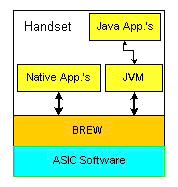
First of all, BREW™ is an acronym that stands for Binary Runtime Environment for Wireless. From a software developer's perspective, Qualcomm®'s BREW can be viewed as:
1. A set of APIs that enable developers to create software applications for wireless devices (wireless phones for now), and
2. A means of selling and delivering applications to end-users.
On the phone itself, BREW is a thin client (about 150K) that sits between a software application and the Application Specific Integrated Circuit (ASIC) level software. Thus developers can write to BREW without knowing or caring about the device's chipset or air interface. While it's true that CDMA is Qualcomm's specialty, BREW is equally capable of running on devices that employ other air interface standards. Figure 1 shows the conceptual layering of software on a wireless device.
The second major component of BREW is the BREW Distribution System (BDS). The BDS encompasses end users' ability to shop for, purchase, download, and install software over the wireless carrier's network.
The BREW Shop lets users browse the carrier's Application Download Server to see what applications are available for purchase or trial. The entire transaction is completed over the air. The carrier generates a billing record for each purchase and a corresponding charge appears on the subscriber's monthly phone bill.
The carrier retains any retail markup and shares 20% of the application's wholesale price with Qualcomm. The remaining 80% of the wholesale price flows to the developer.
Developing BREW Applications
BREW applications can be written using Java™, C, or C++. At the 2002 BREW Developers Conference, held in early June in San Diego, IBM® and Insignia® demonstrated Java Virtual Machines for BREW. Hewlett Packard® (HP) has also ported its MicrochaiVM™ to BREW. IBM will offer a BREW development plug-in with its WebSphere Studio Device Developer™ product.
This series of articles will focus on C and C++ development for BREW, as supported by the freely available BREW SDK. Note that there are presently 3 versions of the SDK available: 1.0, 1.1, and 2.0. Each SDK version is paired with a corresponding Application Execution Environment (AEE) on the phone. Applications written using the 1.0 SDK will run on phones equipped with later versions of the AEE. The converse is not necessarily true since each successive version incorporates new capabilities.
Since the provision of BREW updates for existing phones is unlikely, maintaining compatibility with version 1.0 is advisable if you want to maximize the size of your target market. Nonetheless, versions 1.1 and, particularly, 2.0 do offer significant incremental functionality. To learn more about the differences, download the 1.0 SDK and flip through the API Reference (754 pages). Then follow the 1.1 and 2.0 "What's new" links from the download page.
While it's true that the SDK is free of charge, the developer must have at least version 6.0 of Microsoft Visual C++™ in order to develop and test applications using the BREW Emulator™ supplied with the SDK. The emulator is a Windows™ program that simulates the AEE on a phone. An application runs on the emulator as a Windows .dll. The emulator is a good tool for learning the APIs and testing an application throughout the development process. Be forewarned that there are significant differences between the emulator environment and the phone itself. Developers should incorporate actual hardware and frequent native builds early in the development process, in order to avoid convoluted debugging issues down the line.
When a developer decides to take the leap and commence commercial development, several additional costs must be incurred at various stages of the project. First of all, in order to gain access to tools fundamental to development on actual hardware, the developer must be authenticated. In essence, developer authentication involves an outlay of $400 for a Verisign Authentic Document Digital ID™, good for one year from date of purchase or the digital notarization of 100 applications, whichever comes first.
Authentication gives the developer access to the BREW Developer Extranet™ where several important tools can be accessed and/or downloaded. For example, the BREW ClassID Generator™ assures the provision of a unique, 32 bit ID for each application. The BREW TestSig Generator™ provides a digital signature that allows a developer to test an application on actual hardware. Additionally, the BREW AppLoader™ downloads applications onto phones.
Beyond authentication, there are other costs. The CPU used in BREW phones is currently an ARM7TDMI®. Since C and C++ applications run natively on the device, an ARM® compiler is required. Qualcomm presently supports ARM BREW Builder™ ($1,500), ARM Developer Suite (ADS) 1.0.1™, ADS1.1™, and possibly ADS1.2™. Given that ADS1.2 costs $5,500 for a node-locked license and $6,500 for a floating license, the $1,500 price tag for BREW Builder looks like a steal of a deal! A free, 45-day, evaluation version of ADS1.2 is available.
The developer will also need a BREW phone for testing applications. Presently only 2 models are commercially available: the Sharp® Z800™ ($399.99 from Verizon Wireless®) and the Kyocera® QCP3035e (price unavailable, though certainly less than the Z800). Note that both of these phones have version 1.0 of the AEE, thus applications targeting these devices must be developed using version 1.0 of the SDK. Three new phones, equipped with version 1.1 of the AEE and a CDMA 1x air interface, are due to hit the market as early as September 2002. Pricing information is currently unavailable. Phones with version 2.0 of the AEE are expected late in 2002 or early in 2003.
As shown by Figure 2, TRUE BREW™ certification testing, conducted by NSTL™, represents another potentially significant cost for the developer. An application must pass TRUE BREW certification before a carrier will make it available on their network. Certification aims to ensure that carriers' networks remain free of viruses and malicious or unstable applications.
Subscribe to:
Posts (Atom)